

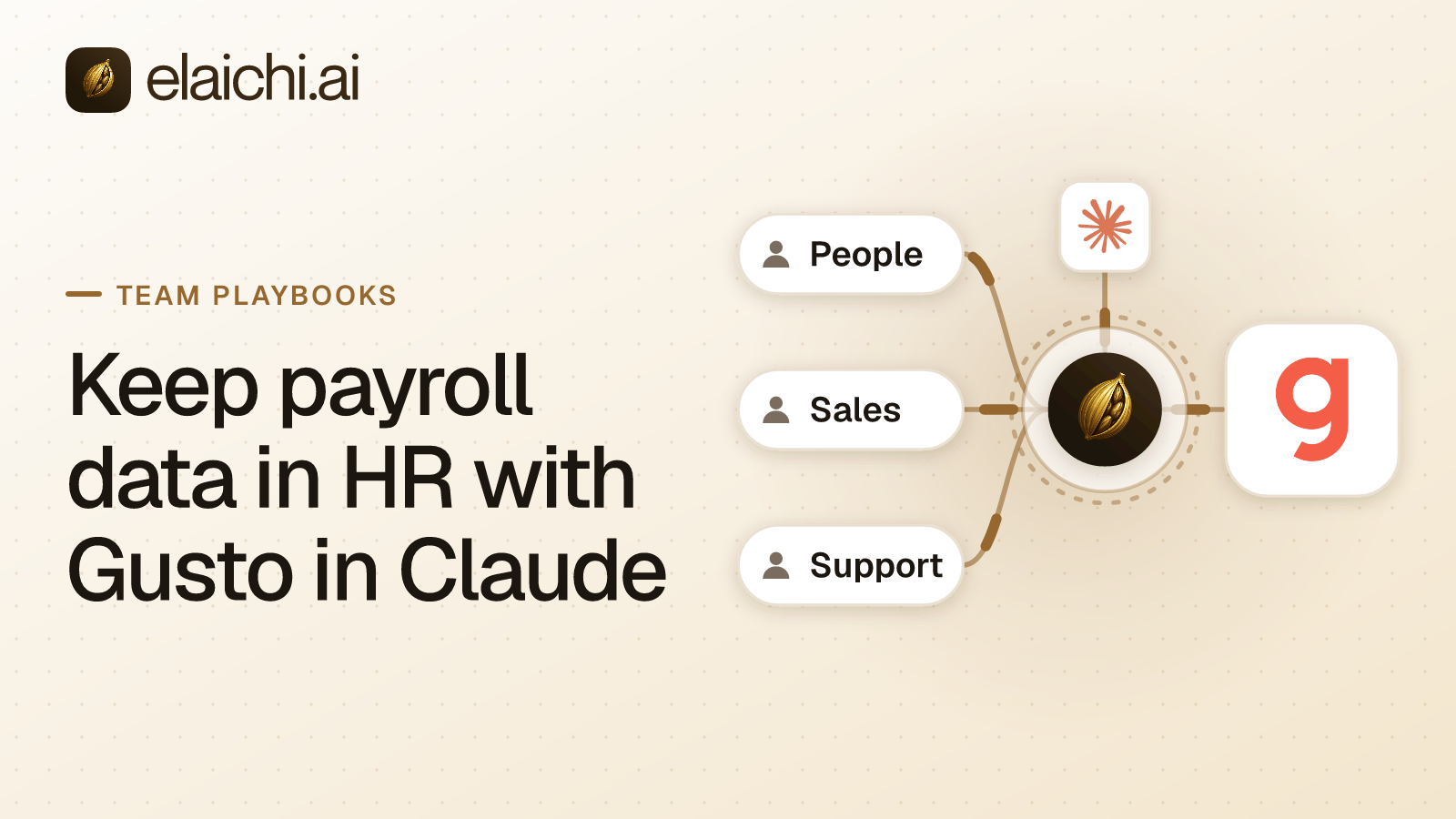
An HR lead wants Gusto in Claude. The ask is reasonable: stop exporting a CSV every time a manager wants a headcount, and stop rebuilding the payroll checklist by hand. The worry is also reasonable. Payroll and salary data should reach the people who run payroll, and nobody else who happens to use the same AI client.
This playbook covers Gusto's own MCP server, run through Elaichi. MCP (Model Context Protocol) is the standard way an AI assistant calls tools in other apps.
What can Gusto in Claude do through Gusto's own MCP server?
Gusto's MCP server reads live payroll and people data, and it acts. Gusto lists logging time, onboarding an employee or contractor, and preparing and running payroll (gusto.com, checked October 2026). Gusto also says every write comes back for confirmation before anything moves.
Gusto builds and runs this server. In Elaichi it is a native MCP connector: Gusto's tools, with Elaichi handling sign-in, access and audit in front of them. Elaichi does not write or fix these tools. Reports about how a tool behaves go to Gusto at support.gusto.com.
Gusto's server decides which tools each account gets. The Gusto connector page lists no fixed tool set for that reason. The tools you govern are the ones Gusto's server lists to your connection, and you read them on that connection's page in Elaichi.
Gusto's confirmation step deserves a plain reading. The confirmation goes to the person in the chat. Through a shared toolbox, that person may not be the admin whose Gusto account the call runs on. Decide who may confirm a payroll run before anyone shares anything.
Who can connect Gusto, and what does the connection see?
Only a primary or global Gusto admin can connect the server. Gusto says a connected assistant reads the Gusto data the authorizing user can already see, and nothing beyond it (gusto.com, checked October 2026). An admin's view is wide, so the connection is wide.
Gusto gives one lever at sign-in. OAuth (the browser sign-in that grants an app access without a password) asks the admin to choose which categories of Gusto data to share. Pick only what HR needs. That choice is the ceiling for every person who later uses the connection, and Elaichi can narrow below it but never above it.
In Elaichi, the credential stays with Elaichi's separate credential service. The AI client holds only an Elaichi token. A connection someone shares runs on its owner's account, so every Gusto call through it reaches Gusto as that admin.
Should HR share the Gusto connection or a Gusto toolbox?
Share a toolbox, and keep the connection private to the admin. A toolbox is a named set of tools pinned to connections. One that holds only Gusto tools gives the HR team exactly those tools and nothing else from the admin's account.
The two choices differ in reach:
| Share | What an HR member reaches |
|---|---|
| The connection, at use | Every tool Gusto's server lists to that connection, minus their restrictions |
| A Gusto-only toolbox, at use | Only the tools in the toolbox, minus their restrictions |
A use grantee runs a toolbox's tools without holding any access to the connection behind them. Elaichi still checks that person's own restrictions on every call. Revoking the share takes effect on their next call.
A member who is also a Gusto admin can connect their own account instead. That route suits an admin who uses Gusto in Claude alone. It does not work for a coordinator who is not a Gusto admin, because Gusto requires a primary or global admin to connect.
How do roles and restrictions split Gusto tools inside HR?
Restrictions on roles decide which Gusto tools each person can reach. A restriction is a rule on a role or on one member, naming whole connectors or single tools. In Elaichi, restriction targets are role or user only; the organization default is the absence of a rule, which means allow everything. There is no team target, so HR needs roles of its own, such as an HR coordinator role and a payroll role, built as custom roles on Gold.
A workable split for most HR teams:
- Every role outside HR. Restrict the Gusto connector whole. That also stops another Gusto admin elsewhere in the company from connecting their own account through Elaichi.
- HR coordinator. Restrict the payroll-run tools and any compensation reads Gusto lists to your account.
- Payroll. Keep the full Gusto toolbox.
A restricted tool is not offered to the member's AI client, and a call to it is refused. A member's own rule can only narrow what their role allows; it never widens or replaces the role's rules. A change takes effect within about two minutes. The trade-offs between naming a whole app and naming one tool are worked through in per-tool versus per-app rules.
Why does Elaichi treat an unmarked Gusto tool as destructive?
An MCP server can mark each tool as read-only or as non-destructive. For a native MCP connector, Elaichi counts any tool the server marks as neither as destructive. That is the default for every vendor's server, not a judgment about Gusto.
A destructive tool needs more from the AI client's grant (the access a person approves for one client). The person must tick "Delete data and remove access" at Elaichi's consent screen, as well as "Run your connected tools". That box is never ticked by default. It also covers deleting things in Elaichi itself, so tick it only where the HR chat needs those Gusto tools.
An admin can review each Gusto tool's tier in the console and lower it per tool. The console shows whether a tier came from Gusto's own label, from the default or from an override.
Can you follow Gusto's "use in isolation" advice through Elaichi?
Partly. Gusto's guidelines ask you to use its MCP server in isolation, with no other MCP servers in the same client session. They also ask for trusted clients only, manual confirmation for all tool use, checked outputs and an opt-out of model training (gusto.com, checked October 2026).
Elaichi serves many apps through one endpoint, https://api.elaichi.ai/mcp. Isolation is something you set up per client grant:
- What helps. At consent, each HR member picks Only the ones I pick and selects the Gusto toolbox. That grant reaches only that toolbox's connected tools, and never falls back to all of the person's tools.
- What Elaichi still adds. Elaichi's own operations stay available to that grant, according to the scopes the person ticked. Leave "Create and change data" unticked if the HR chat does not need it.
- What Elaichi cannot see. Other connectors the person turned on in Claude sit outside Elaichi. Claude lets a person switch connectors on or off for each chat (support.claude.com, checked October 2026). Turn the others off for Gusto work.
For manual confirmation, set Claude's tool permission on Elaichi's execute_tool to Needs approval. That one setting covers every connected-tool call made through execute_tool, so it cannot tell Gusto from another app. Model-training settings live in the AI client, and Elaichi does not change them.
Gusto's trusted-client examples are Claude, Gemini and Cursor. Its guidelines do not mention a layer in between. Routing through Elaichi adds a party that holds the Gusto credential, and your security review should weigh that.
What does the audit log record for each Gusto call?
The audit log (the organization's append-only record of actions) gets one row for each Gusto call that reaches execution. The row names the person who made the call, the tool, the connection it reached, the AI client and whether it worked. On a shared toolbox, it names the HR member, not only the admin whose account Gusto saw.
A call refused before execution, such as a restricted tool or a missing consent scope, writes no row. The row keeps no argument values, apart from the one path argument that names the object, recorded as the target id. So a pay rate passed as an argument is not written to the log.
When should HR connect Gusto directly, or not at all?
Connect Gusto's server directly when one or two Gusto admins will use it themselves, in one client, with no other apps. Gusto's guidelines are written for that shape. A direct connection skips Elaichi entirely, so Elaichi governs none of those calls, and nothing is lost if nobody else needs access.
Elaichi earns its place when non-admins need Gusto, when HR also works in other apps through Claude, ChatGPT, Cursor or any MCP client, or when the company wants one audit trail. The wider argument is in running vendor MCP servers through Elaichi.
Do not connect Gusto at all in three cases:
- The company will not accept an admin-level connection used by people who are not admins.
- The team will not keep confirmations manual, in Gusto and in the client.
- The data categories Gusto offers at sign-in are wider than anyone outside payroll should reach.
What happens to the Gusto connection when its admin leaves?
The HR setup keeps working only if you plan the handover. Elaichi's offboarding preview lists every connection the departing admin owns and the toolboxes that pin it. Transfer the HR toolbox to an admin who is staying. A transfer changes the owner and keeps every share.
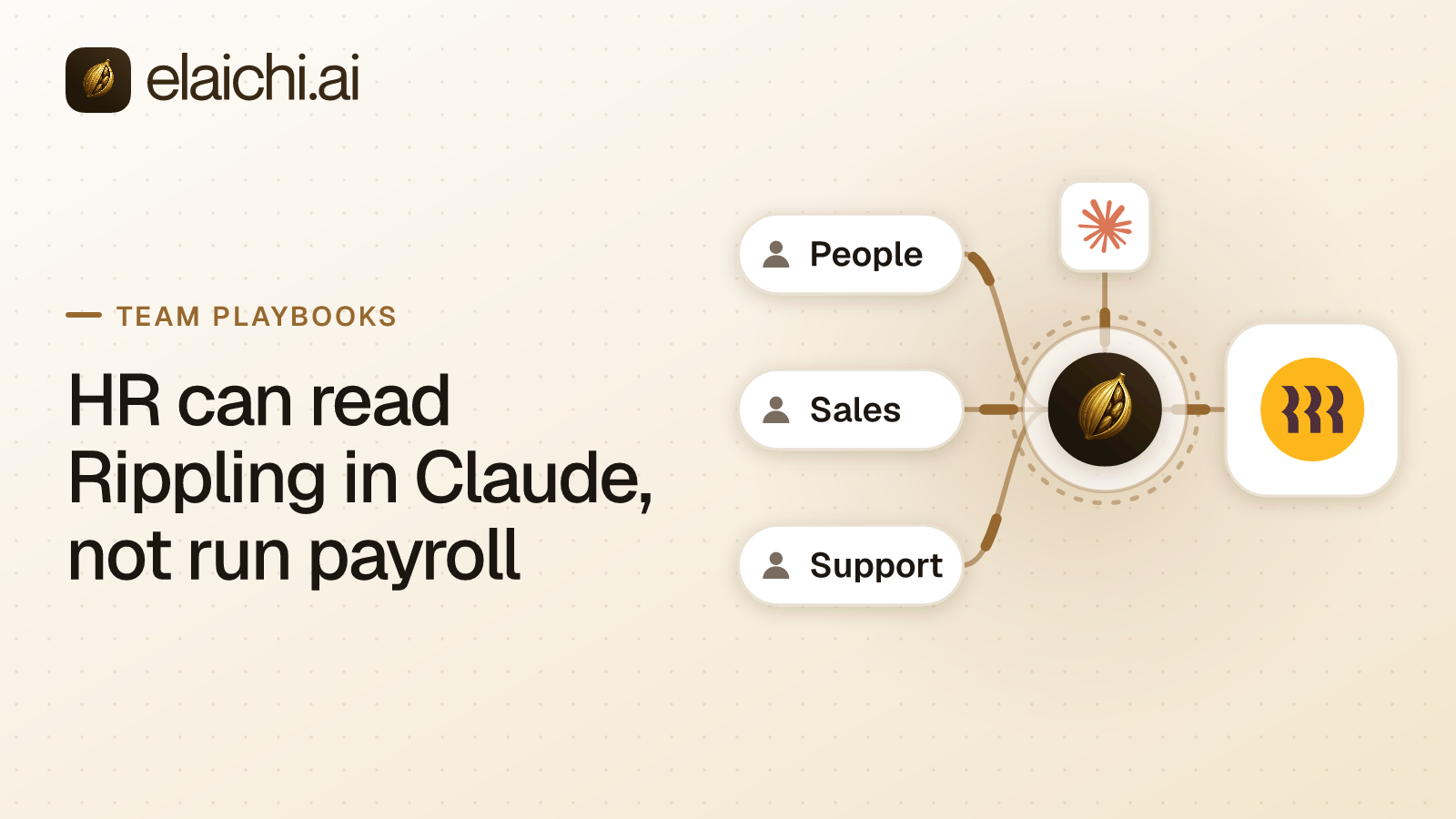
The toolbox's entries still run on the departing admin's Gusto sign-in. Before that Gusto account is deprovisioned, have the staying admin connect Gusto with their own account and point the toolbox's entries at the new connection. Then deprovision the old account in Gusto or through your identity provider. The general version of this problem is in offboarding when the agent holds access, and other HR setups, such as Rippling in Claude, are on the use cases page.